
Meetings
Kiosk Mode Groups
Kiosk mode in JoinXR allows you to preconfigure your devices to bypass the user interface and join a single meeting and open a document as soon as the app starts.
The goal is simple: get people into your XR content as quickly and smoothly as possible.
When to use Kiosk Mode
Section titled “When to use Kiosk Mode”Kiosk Mode works best when:
- You control all the devices (You can pair/unpair accounts and know when those devices are being used.)
- You’re running the same experience repeatedly (For one-off meetings, Kiosk Mode is usually unnecessary.)
- Your devices are together in a known physical space (If you have a few different sites, see Running a group across multiple locations.)

Typical use cases
Section titled “Typical use cases”- A multi-day tradeshow, with several headsets running short, repeatable demos
- A portable sales kit with a small set of devices delivering the same experience at different locations
- A classroom or training setup where groups rotate through the same content
Setting up Kiosk Mode
Section titled “Setting up Kiosk Mode”Kiosk Mode is organised using Groups. All devices in a group automatically join the same meeting and see the same content.
Once a group is created, any device in that group will behave differently: launching JoinXR will immediately place it into the configured meeting and document. This continues until the group is stopped, the device is removed, or the group is deleted.
To create a group, you must be an Owner or Manager in your organisation:
- Open the Kiosk Mode page in the JoinXR web portal
- Select Create Group and set up
- Group name
- Lobby message
- Document
- Add devices to the group and choose which user each device should log in as. Leave Auto-join switched on for each device (this is the default, and what you want for most setups – see Letting devices join when they’re ready).
- Choose which devices will be organisers. These devices will have the usual capabilities that meeting organisers have. A group must have at least one organiser.
- Save the group
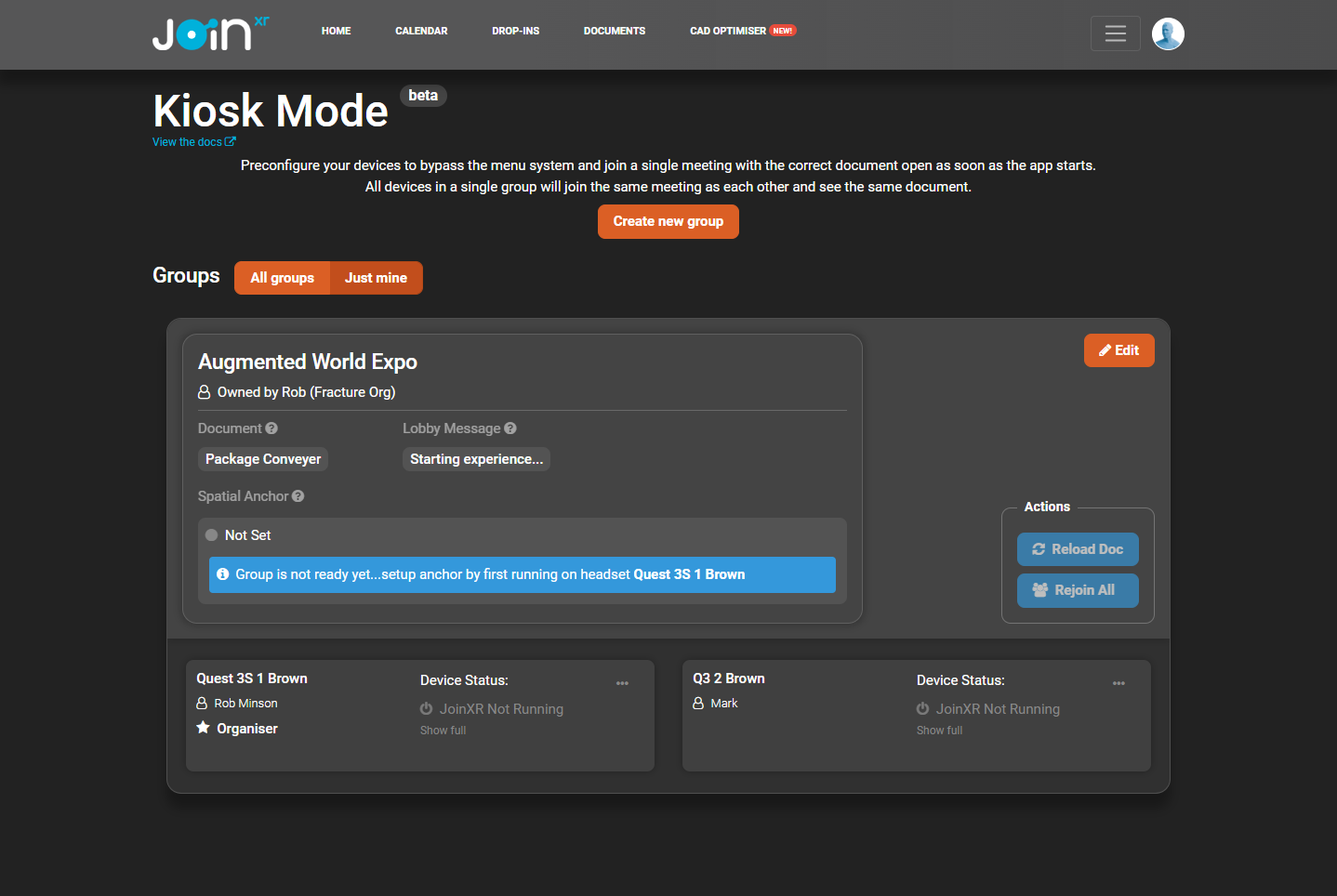
You may need to pair devices or rename them at this stage if the correct user accounts aren’t already paired.
Using Kiosk Mode
Section titled “Using Kiosk Mode”When you’re ready to start:
- Launch JoinXR on one of the organiser devices. The device will auto-join the meeting.
- The app will guide you through the usual base placement flow to create a shared spatial anchor.
- Launch any other devices in the group, they will automatically sync their space to the same spatial anchor.
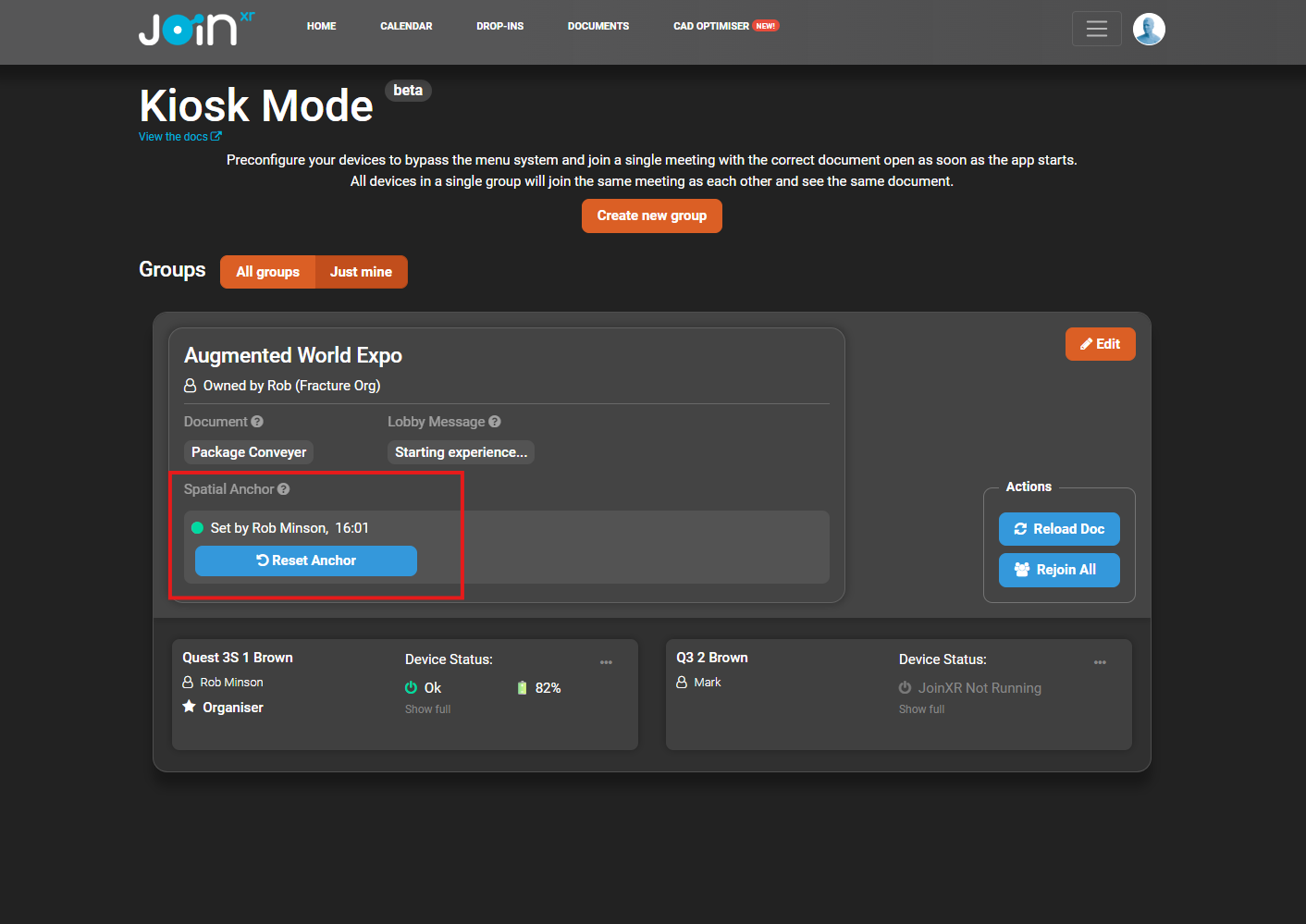
Once the anchor is set you will see the group change in the web portal to show that the anchor for the group has been configured. Your group is all set up, and will continue running unchanged until deleted or de-activated.
Devices can sleep or restart, when the app resumes, it will return to the same meeting and document and sync with the same spatial anchor without any extra setup.
To reset the document back to its initial state (e.g. to repeat the experience with another group of users), use Reload Doc in the web portal or in-headset via Document > File > Reload.
If you move to a different location, make sure you hit the Reset Anchor button, the next time an organiser device runs the app, it will automatically be prompted to set a new anchor, just as before.
If a headset shows “Unable to find the shared anchor for this room”, it can’t find the anchor the rest of the group is using. Check it’s in the same room as the other devices. If the whole setup has moved, use Reset Anchor as described above.
Going further
Section titled “Going further”The setup above covers most uses of Kiosk Mode: every device in one room, joining automatically. Groups have two more options for setups that don’t fit that pattern.
Letting devices join when they’re ready (auto-join off)
Section titled “Letting devices join when they’re ready (auto-join off)”With Auto-join switched off for a device, the group no longer takes control of it. JoinXR starts as normal: the device isn’t logged in automatically and the usual menus are available, so it can be used for other things.
When the device is logged in as the right user, the group appears in the meetings list, marked with a kiosk icon. Tapping it joins the group, and from then on the device behaves exactly like an auto-join device: same meeting, same document, same shared anchor. Leaving the meeting returns the device to normal use.
This is useful when:
- The devices are shared with other activities, and should only join the group sometimes
- A presenter wants to check a device or prepare before stepping into the experience
You can mix auto-join and tap-to-join devices in the same group. For example, a set of demo headsets could auto-join while the presenter’s own headset joins when they’re ready.
Running a group across multiple locations
Section titled “Running a group across multiple locations”By default, all devices in a group are assumed to be in the same physical space and share a single spatial anchor. If your group spans more than one site (for example, a demo running in two offices at once, or a training room plus a remote instructor’s room), switch on Multiple locations for the group.
You can then assign each device to a location (up to four: A, B, C and D). Each location gets its own spatial anchor:
- Devices at the same location share an anchor and see each other in the same physical space, just as in a single-location group
- All locations are in the same meeting and see the same document, so people at other locations appear as remote participants
Setting up works the same way as before, once per location: the first device to launch at each location (an organiser, if one is available) is guided through base placement, and the other devices at that location sync to it. The web portal shows the anchor status of each location separately.
Reset Anchor is also per location, so if one site moves you can reset just that location’s anchor without disturbing the others.
Make sure each device is assigned to the location it is actually in. A device assigned to the wrong location will look for an anchor that isn’t there and show the “Unable to find the shared anchor for this room” message.
What Kiosk Mode isn’t
Section titled “What Kiosk Mode isn’t”Kiosk Mode is a JoinXR-level feature. It removes the need for users to navigate menus to join meetings or open content, but it does not change the device’s operating system.
This means:
- OS-level gestures (like exiting to the system menu) still work
- The device will not automatically launch JoinXR after a full reboot
If you need OS-level lockdown or auto-launch behaviour, these are typically provided via platform-specific MDM (Mobile Device Management) solutions, which can be used alongside JoinXR’s Kiosk Mode but cannot replace it.